Showing posts with label Android Info. Show all posts

How to Hack Wi-fi Connection Using Android Phone


How to Hack Wi-fi Connection Using Android Phone
Wi-fi Connection


You want to test the security of your network? If the ancient times we need an operating system like Windows or Linux with a specific wireless network card to scan and hack wireless networks, now we simply use your Android device. The tool is available free of charge as long as your device is compatible. To note that the hacking router without permission is illegal. These steps should you use to test the security of your own network. See Step 1 below to find out how.
  1.    Root the compatible devices. Not every Android phone or tablet could pave the WPS PIN. This device must have a wireless chipset Broadcom BCM4329 or bcm4330, and should be rooted. Cyanogen ROM has proved the most up to this point.
  2.    Download and install bcmon. These applications enable Monitor Mode on the Broadcom chipset which is essential to pave the PIN. Bcmon APK file is available for free from bcmon page on Google Code website.
  3.    Run bcmon. Once the APK file is installed, run the application. Install firmware and tools if required. Tap Enable Monitor Mode option. If the application is suddenly broken, open it and try again. If this fails for the third time, your device will most likely not support.
  4.    Tap Run bcmon terminal. This will launch a terminal that is similar to most Linux terminal. Typeairodump-ng and tap the "Enter". Airdump will be loaded, and you will be taken back to the Command Prompt again. Tikkanairodump-ng wlan0 and tap the "Enter".
  5.    Define the access point wants to be hacked. You will see a list of access points available. You must select the access point using WEP encryption.
  6.    Record the MAC address appears. This is the MAC address for the router. Make sure you write the correct address if there are a few routers listed. Write down the MAC address.
  7.    Begin to scan the channels. You should gather this information from the access point for several hours before trying to hack the password. Type airodump-ng -c channel # --bssid MAC address ath0 -w output and tap "Enter". Airodump will begin scanning. You can let the device while scanning the information. Be sure to connect it to the charger in order not to run out of battery.
  8.    Hack password. Once you have the appropriate number of packages, you can try to hack the password. Go back to Terminal and type aircrack-ng output * .cap, then tap "Enter".
That’s article about How to Hack Wi-fi Connection Using Android
I hope it useful for you… Share This Article if you think this article may useful for others. Thank you

How to Break an Unlock Android Device

How to Break an Unlock Android Device
Android Device

To prevent others from accessing your phone, you should enable some security settings. Generally, Android provides security features that are very useful and you can enable to protect the device from the hands of ignorant. Two commonly used security feature is the pattern lock and PIN. Unfortunately, you may no longer be able to access your phone if you forget to lock pattern or password. Although locked out of the device itself feels annoying, you can use the device again by circumventing security settings and break down your Android phone.

1.      Using android device manager

a.       Visit http://www.google.com/android/devicemanager. Google provides a variety of device management features on this site, you can use without having to touch your device. However, depending on the type of device, the following steps may not be applicable to your device.
b.      Sign into your Google account. You will be prompted to enter your Google account credentials. If you have multiple Google accounts, enter the appropriate credentials with the phone.
c.       Click the "Lock". On the left side of the screen under the name of the device, you'll see three options: Ring, Lock, and Erase. Clicking "Lock", although it does not seem logical, will allow you to set a temporary password that will override the lock pattern or PIN number.
d.      Enter the password you have set on the device's lock screen. Now, you can access the device back.

2Using Key Pattern

a.       Try entering five wrong pattern. To access the option of resetting the lock screen, you need five times incorrect correct pattern. Make sure to pass at least four points when trying to enter the wrong pattern. This method can only be used on the lock pattern.
b.      Tap the "Forgot Pattern?" at the bottom of the screen. The screen lock will open.
c.       Enter your backup PIN. If you remember the PIN backups made when creating a pattern lock, enter now to unlock your device. However, if you do not remember this PIN, open the device with a Google account.
d.      Enter your Google account data to unlock the device. You can sign in to your Google account to unlock, as long as the account was the same as used in the device.

How to Accelerate Your Android Device

How to Accelerate Your Android Device

Android phones now exist almost everywhere ranging from low specifications to very sophisticated. Over time, each phone will be slower; This is why you must maintain the smoothness of the phone with a few simple steps in this article.
  1. Reset your phone. Arrange reinstall everything and restore your phone as before, which is "like new". This is a temporary choice, because when re-used phones will start to slow down again as usual. Back up contacts, memos, and other important information (such as passwords stored in the browser) before doing this step.
  2. Look internal memory space. The low internal memory could cause severe delays on the phone. Move media (images, mp3 files, video, etc.) to external memory such as SD cards. Some low- and moderate-specification mobile phones typically have a low internal memory, so move your files to the SD card will not help much.
  3. Root your phone. Root means giving more authority to the phone. Despite the risks of rooting, but the risk is not as big as before. Root process that failed to make the brick phones (eg malfunction). In addition, to root the phone will void the warranty. However, you can do unroot the phone (and cell phone warranty returns, because manufacturers cannot know if your phone is ever to be rooted before). Here is a list of things you can do after rooting your phone:
a.       Overclock the processor phones. This will ultimately speed up the phone but will consume more battery than before.
b.      Installing a special ROM. ROM is basically an Android version installed in the phone. Special ROM ROM is not official, but as part of a special ROM works better than the official ROM itself. Special ROM can solve many problems, including slowness and update the version of Android, but the solution is very technical, risky and not recommended, due to special ROM sometimes unstable, contain or eliminate damage to the official ROM features.
c.       Removing unwanted default application. Before you delete some applications, consider the following two points:
d.      Download the backup application, such as Titanium Backup to back up the application before deleting (just in case if you want to restore).
e.       Do not let you remove system applications, such as the launcher or the status bar.
f.       Perform root also gives you access to more technical applications, such as root call blockers, normal and notification ads blockers and root memory managers. Root memory manager is usually better than the auto task killer app.

Best Xposed Theming App Module for Android I Ever Used [Xposed]

One amazing thing we can do on our Android device if we have Xposed installed, is we can modify and change the system theme (colors, transition effect, etc). The best is because it take advantage of use of Xposed framework and it means the look of our Android device system is changed without touching the apk of system. All changes is safe as it been made on memory and can be easily reverted back just by deactivate the module from the Xposed app.

There are many modules created by for theming our Android device out there. This is a great way for users who want / like to modify Android device looks and view but do not have coding skill or do not want to messy with apk decompiling-recompiling, just like me :D . Now here it is the 5 best Xposed module theming app for modifying Android device system User Interface, version www.indophoneboy.com.

  1. Wanam Xposed by "Wanam"


    Wanam Exposed is a great utility Xposed module Android application for tweaking Android system User Inteface, made especially for Samsung Touchwiz ROM based phone. We can change and modify the status bar, tweak the system menu like power menu, change background, change colors, etc. Wanam Xposed is have 2 version, for Samsung Android 4.2+ and for Samsung Android 5.x+. Its working best environment on a deodexed ROM.

    wanam xposed android module user interface

    Although mainly created for Samsung Touchwiz based phone, its not closing possibility to work on other Custom ROM though the compatibility might not be guaranteed. Head to the official thread of Wanam Xposed on XDA Forum.

    -> DOWNLOAD WANAM XPOSED MODULE.apk
    For Samsung Android 4.2+ (1.8 MB) | For Samsung Android 5.x+ (1.1 MB)
  2. Xblast Tools by "FemBlack"


    Xblast Tools is another great theming Xposed module for Android device. Based on my experience when used it, it is have no different purpose with Wanam Xposed, except Xblast Tools is created to serve for universal Android phone and ROM's starting from Android 4.0.3 and up. Check the thread by "FemBlack" on XDA Forum.

    xblast tools android xposed module user interface

    -> DOWNLOAD XBLAST TOOLS XPOSED MODULE.apk (6.1 MB)
  3. Android Theme Engine / Ex-Themer by "vishal11in"


    For the third entry, there is Android Theme Engine. Also there is 2 different name of this Xposed module but it looks it have actually same purpose and I can catch it because its created by same developer. Android theme Engine is created for more universal Android version from JellyBean, Kitkat to Lollipop, while Ex-Themer is created for Android Kitkat.

    android theme engine xposed module user interface

    What differencing Android Theme Engine and Ex-Themer from Xposed theming app i said above is they have a custom template selection option, which it can make total modification to the system theme and colors by applying from a template inside it (of course partially modification is still exist for you to use). Unfortunately, the compatibility is restricted to only AOSP (Android Open Source Project) based ROM and some popular Android phone only. Read more on the official thread on XDA Forum.

    -> DOWNLOAD ANDROID THEME ENGINE XPOSED MODULE.apk
    Android Theme Engine.apk (10.6 MB) | Ex-Themer.apk (for Kitkat) (2.7 MB)
  4. GravityBox by "C3C076"


    Now this is one of my favorites Xposed module, GravityBox. Actually the "theming" modification feature is almost no exist in this app. GravityBox only created to make some minor modification to the Android system framework like changing the status bar elements, navigation bar elements, power menu, key function tweak, etc. Still I like this Xposed module because it never fail on every ROM i have used and it support from Android Jelly Bean to the Android Marshmallow.

    -> READ MORE ABOUT GRAVITYBOX XPOSED MODULE.
  5. MonsterUI by "KuaQ"


    For the last one, there is a simple and great Xposed theming app for Android called "MonsterUI". The idea of MonsterUI is to theme Android framework style and colors to be a Lollipop Material style. This Xposed module is can work on every ROM's, but all the features and compatibility is working best on AOSP based ROM I think.

    -> READ MORE ABOUT MONSTERUI XPOSED MODULE.


All the Android Xposed module is available on repo.xposed.info. Consider DONATIONS to the developer if you think the application is usefull.

7 Best Android Launchers I Ever Used on My Smartphone

Launcher is one of top feature created on Android platform. Basically, launcher itself is an application on your Android phone / device. A launcher on Android is like a bridge that connect user and Android system with its installed application. In fact, launcher is the first application we will interact when we was booted our Android device as we enter the main part of launcher called homescreen.

Like I said above, we can imagine if we walk on top of a beatifull and well designed bridge, we can enjoy as we walked on it isn't it :D ? And that's can describe how important a launcher for an Android device user.

best android launcher indophoneboy

A launcher on your Android device can also be an identity and show the characteristic of you that be a unique compared to other persons. Everyone is unique, so why we must use same Android device with same homescreen :D .

Well, I have my own opinion about how a good third party Android launcher should be. It should be have customization option to change icon pack, change theme, customize other elements such as add effects, etc... Because one of most reason users installing 3rd party launcher because they are too boring with their stock launcher, and most important is: NO ANNOYING ADS AND ANNOYING PROMOTION APPS!

Now here it is the 7 Best Launcher Application for Android Device I ever tried on my Android smartphone. I'm pretty sure you will fall in love with one of them, so check this list out!

  1. Nova Launcher


    Well, Nova Launcher in my opinion is being the "standard 3rd party Android launcher" for every device from customizing options and rich features. Actually Nova Launcher is the first ever 3rd party launcher I installed on my Android smartphone. Yes, you will find many features you will not get from your stock Android launcher and, it still lightweight for the RAM usage.

    However, some minor features is locked in the free version, it need us to buy the Premium Addon to unlock some additional minor features.

    View NOVA LAUNCHER info on Play Store
  2. APEX Launcher


    Apex Launcher is another good alternative standard 3rd party launcher too. It appears not so different from Nova Launcher except some little thing. But I like Apex Launch because its user interface and display is look more 'classy' and neat.

    Also, Apex Launcher have the premium version on Play Store which with the premium version you can unlock some minor additional features.

    View APEX LAUNCHER info on Play Store
  3. ADW Launcher


    ADW Launcher is one of good standard 3rd party Android launcher with rich customize features. It can customize various elements. What i most like from ADW launcher is the app drawer customize option. It can make my Android phone app drawer appearance into totally different.

    View ADW LAUNCHER info on Play Store
  4. Smart Launcher 3


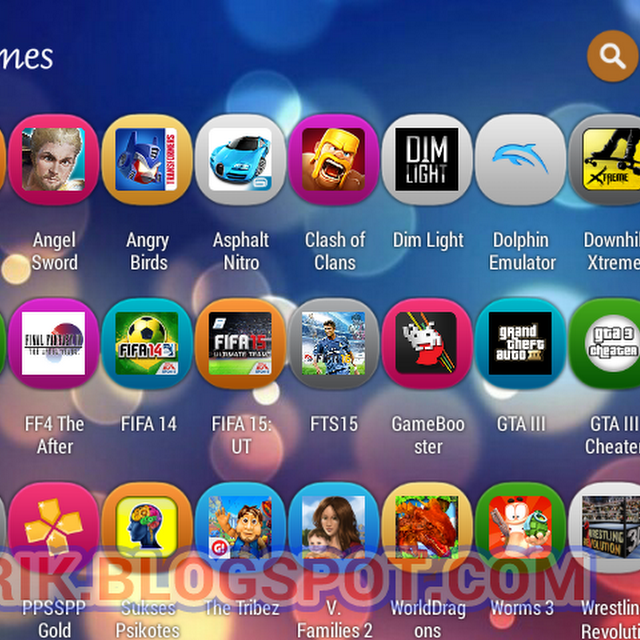
    Now, we have Smart Launcher 3. As you can notice from its name, it is the 3rd series for the launcher. Smart Launcher 3 is have unique appearance compared to most launcher released on Android market. It have its own style definitely with the 'bubbles' styles and homescreen, and sidebar app drawer. And also it is very lightweight.

    smart launcher 3 android games category

    We can also buy the premium / pro version of Smart Launcher 3 to unlock some premium features like gestures, more categories, etc...

    Read more about SMART LAUNCHER 3 Android application.
  5. Launcher 8 Pro


    Launcher 8 Pro is another different Android launcher bringing Windows Phone (WP) homescreen style for your device. Users can also design his own homescreen WP style by modifying the tiles like the colors, shape, add background image, etc.

    launcher 8 pro android application minions theme

    Launcher 8 Pro for Android is also have a great theme store. We can select wide range of nice and beautifull Launcher 8 Pro themes created by another users and apply it for our device homescreen.

    Read more about LAUNCHER 8 PRO Android application.
  6. Launcher Lab


    Now for this one, there is an Android launcher which had concept "Do It Yourself" homescreen. The main idea of Launcher Lab is to bring Android users an experience to design their own homescreen. And it is not a nonsense, user can use the homescreen editor just like using the WYSIWYG (What You See Is What You Get) tool.

    launcher lab android wood metal theme

    Not only designing, users can also share his own homescreen design each other with another Launcher Lab users. So we can upload directly our design to share with others, or we can download other users creation and apply it to our Android device on the fly.

    Read more about LAUNCHER LAB Android application.
  7. Themer Launcher


    For the last one, there is my favorite Android launcher right now called "Themer". Like Launcher Lab above, Themer is also bring "do it yourself" homescreen experience. Moreover on my opinion, themer is have richer screen editor than Launcher Lab by make use of a widget called "Zooper". But everythings is have its cost, I think it need more learning curve to use it because it is more complex.

    themer launcher gta v theme

    Users can also download and share homescreen creation each other, and also there is a wallpaper downloader menu. But one thing too bad, Themer Launcher is not fully compatible (not all features will work as expected) with Android device running custom ROM like CyanogenMod, Paranoid, etc or if you change your device default screen DPI.

    Read more about THEMER LAUNCHER Android application.

Note that from number 1 to 3, I do not write post for them. It is because they are the best standar Android launcher, on my opinion. It means the launcher is work like stock launcher for me (I am refer it to AOSP launcher for generality): a homescreen and an app drawer, EXCEPT they are bring more features and functionality from stock launcher such as icon pack / theme changer, more transition effects, line and column settings, gestures, etc... So the best way to know which one is the best is to try it yourself.

But from number 4 to 7 I decide to rewrote my experience on the posts when was using them because the Android launchers is bring something different to use of Android launchers experience for me :D .

Using a good Android launcher that I do not wrote above? Feel free to share it here...


All the Android launchers is available on Play Store.