Android, the open source project mobile system operation is have fast progress in it's development. But there is one thing cannot be separated from Android OS is it the old Android version or even to the most new Android N Nougat, and it is ROOT.
As we know Android is an open source operating system, so we have rights to modify the system as we like. By Rooting our Android device is the way we can unlock "the security seal" of the device so we can through the deep of the system. Actually for honest, Root is something that every user should not do so easy to his device. As for a rooted device can also bring user some serious trouble like bricking it, to the most important things like security and privacy of the user.

Also although Root is something that can void the warranty of an Android device, but still most user will do it anyway as there is so many benefits and advantages they get. But nowaday there is so many information we can get on websites tell us how to Root our Android device easily, and even there is solution to prevent if something bad happen when we did a failed Root.
My myself start Rooting my first Android smartphone Samsung Galaxy V SM-G313HZ when it still 3 months old in my hand. You know what is the first reason why I brace myself to rooted my Android smartphone at that time? Toget internet access for free (oopss...) :D.
Now here it is, the 7 reasons that will make a user to root his Android device.
Like I said earlier, rooting your Android device is something you must think twice before to do it. As we get many benefits, a rooted Android device is also could bring us some trouble including bricking it or some serious trouble about your privacy and security.
I think rooting our Android device is ok if we know what app and what kind of jobs the root application will do to our Android device. And choosing the rights Superuser management app is also an important thing so you can keep your privacy and security safe.
As we know Android is an open source operating system, so we have rights to modify the system as we like. By Rooting our Android device is the way we can unlock "the security seal" of the device so we can through the deep of the system. Actually for honest, Root is something that every user should not do so easy to his device. As for a rooted device can also bring user some serious trouble like bricking it, to the most important things like security and privacy of the user.
Also although Root is something that can void the warranty of an Android device, but still most user will do it anyway as there is so many benefits and advantages they get. But nowaday there is so many information we can get on websites tell us how to Root our Android device easily, and even there is solution to prevent if something bad happen when we did a failed Root.
My myself start Rooting my first Android smartphone Samsung Galaxy V SM-G313HZ when it still 3 months old in my hand. You know what is the first reason why I brace myself to rooted my Android smartphone at that time? To
Now here it is, the 7 reasons that will make a user to root his Android device.
Performance and Function Tweak
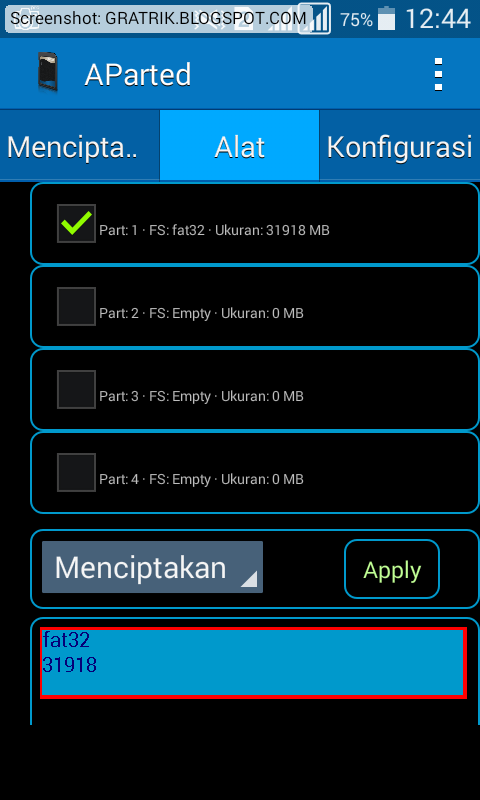
When I just got my first Android smartphone, I'm very happy with it. The first game i was hunting is Final Fantasy III, then I playing it and "awesome". Then i knew that GTA game is also playable on Android, but with size 2 GB, but my phone storage is just 2 GB :( . But there is solutions to trick it, move the data and obb of game to external SD card (which usually have great space like 8 GB, 16 GB, 32 GB, etc...) using some applications like Foldermount or some Xposed module like XinternalSD. And guess what? That's right, the applications is need ROOT :D.
Also with Rooting your Android device, we can do many things to boost the device performance. There is many ways we can improve the performance of our device like removing unnecessarry bloatware (system applications), using some Init.d scripts, applying tweak to the RAM, and many more.Better Gaming Experience
Playing game on Android device is also had many variations too. From Playing the usual Android game to playing some old school games like Playstation Portable using emulator application. One more reason to root your Android device for you who are gaming freak, to get more performance on the game and maximize your gaming experience.
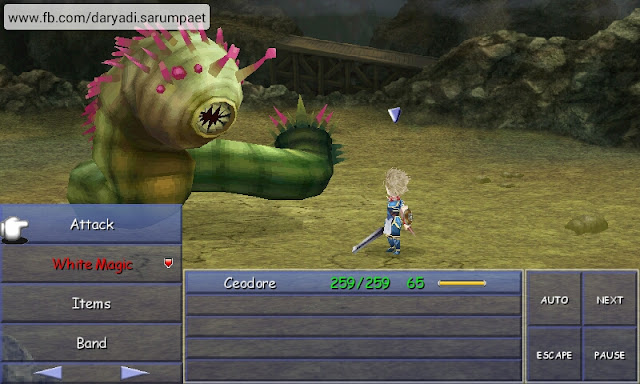
Let me give you a hints about the best Android application to maximize your gaming experience, and it is GLTools. By using GLtools application, you can enchant the graphic or even reduce lag and quality so you can play hind end game on an low end Android phone.Change Display and User Interface
One the most reason why users root his Android device, it is to change the display and User Interface (UI). Yeah, we can change the color, the statu bar icon like clock, battery, change the Settings background with your girlfriend photo, or even fake the signal to 4G even you use a 3G phone :D.
There is also many ways to do it, and one of the most popular method is using Xposed module as it is fairly easy to use and not too risky. Some popular Xposed module to modify the User Interface: Wanam Xposed (mainly for Samsung Touchwiz Kitkat), Xblast Tool (for Kitkat and down), or GravityBox (available for Android Jelly Bean to Marshmallow).Stay Up to Date
Every Android device of course will get system update from the device Vendor. The update can include of Android OS version or even small updates to fix some minor bugs. But I'm sure an Android device will soon stop getting the official updates as more and more new device released. If we want, we also can take an act to update the system or OS version by ourself.
Like my Samsung Galaxy V Android smartphone, now i'm running it with Android Marshmallow which originally released as Android Kitkat, although it never get official update from the manufacturer. To do that, I am installing an aftermarket firmware created by third party (non-official) and flash it by myself. It is often called installing a "Custom ROM".Change ROM
Like I said above, by Installing a custom firmware or custom ROM (the right one of course...) we can update the OS version. But just not that, by Installing custom ROM is like a total modification also to the Display, performance, new features, and many more.

To install a custom ROM, we need a custom recovery. And root is the only way if we want to install a custom recovery directly and using it by our Android device.Backup and Restore
Now this also one more things that pretty important, to easily backup and restore of our Android device content. Actually Google also has offer you a service to backup your device to the Google Drive cloud. But it needs a lot of time and bandwith of course.
If we have a rooted Android device, we can easily backup it's whole content from the applications, system, the apk's and anythings directly to our external storage, so no computer needed. There are many apps on the market that offer to do that, example the best is Titanium Backup and Helium.
Or even we can make a full backup of our Android device content and system using the Backup feature on custom recovery like TWRP, CWM, etc as easy as "one tap".Hack 2 Free and Hack 2 Win :D
Last but not least, is a bad reasons that is we can get premium / paid Android app or game for free. Or just hack an in-app-purchase of an application or game to get some premium features for free. It need some hacking jobs and some right tools like Lucky Patcher, which need root access of course.
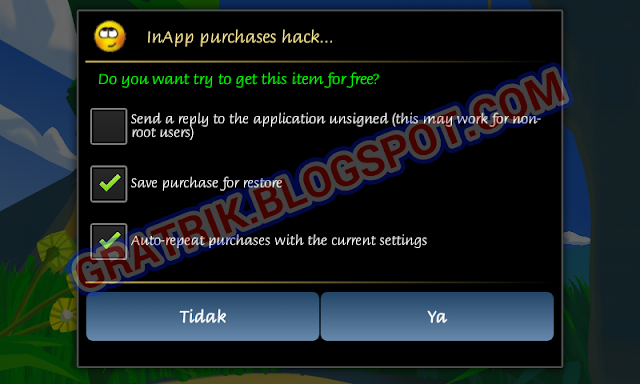
And also we can hack an Android game like the money, the gold, similar like that if we have root access because the system is already unlocked so we can make changes to everythings.


Like I said earlier, rooting your Android device is something you must think twice before to do it. As we get many benefits, a rooted Android device is also could bring us some trouble including bricking it or some serious trouble about your privacy and security.
I think rooting our Android device is ok if we know what app and what kind of jobs the root application will do to our Android device. And choosing the rights Superuser management app is also an important thing so you can keep your privacy and security safe.