Showing posts sorted by relevance for query root. Sort by date Show all posts

Root Dashi APK - Easy Root Your Android Without PC or Computer with One Click

One more application made by Chinese named Root Dashi APK. This application is made for rooting our Android smartphone without PC / Computer, without complicated with just one click (or tap :v ) (internet connection needed). Well what is the essence of my life without root :v , my android smartphone can not be modded, can't hack it, and can't improve it.

This tutorial was written when i got soft brick on my Android Samsung Galaxy V SM-G313HZ, so I must re-root it again because the firmware is reinstalled back, and i try this app.

Even though previously i had shared something like this, but with different app that is "360 root" app. But recently my Android smartphone got a bootloop (worse: "soft brick") because the fail of installing a custom kernel, after restore the backup there is no different, and had I had to re-install the stock firmware of my samsung galaxy v sm-g313hz, that make it back to virgin :v . When the time i was browsing at Android Game Indonesia group, i saw a post about Root Dashi, and it's work on my galaxy v (Android Kitkat 4.4.2).

Step to root your Android smartphone as easy as one click (tested on Galaxy V Kitkat 4.4.2)


  1. Download dan install Root Dashi v. 5.1.6.apk app.
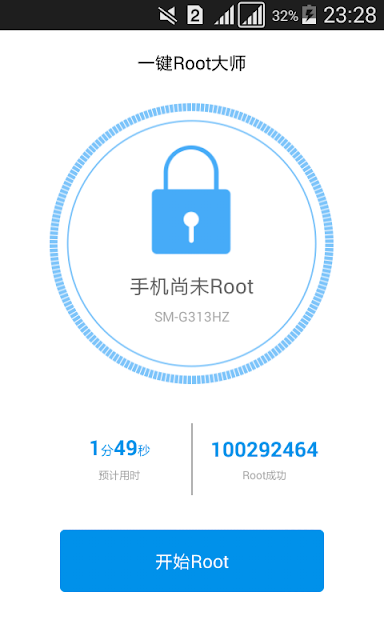
  2. Turn on your internet connection, and then open the Root Dashi app. Just straight tap the blue button with "root" text to begin the operation.
    root dashi click blue button start
    (Tap the blue button to start the rooting process)
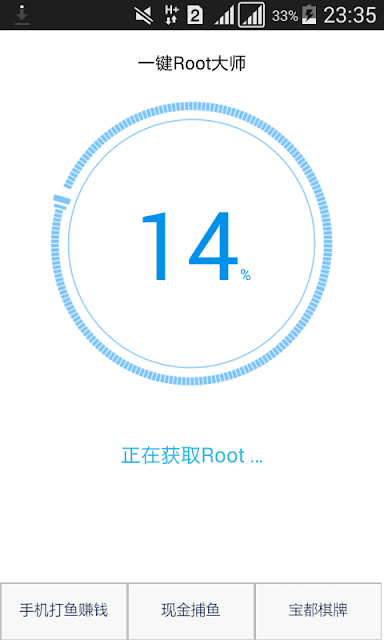
  3. Then the rooting process is on the way and wait until 100%. Taraaa done.
    When rooting process is ongoing, maybe Root Dashi app will try downloading an app itself, i don't know what is that app, if you don't understand the language too just let it and don't install it and back to the Root Dashi app (the ongoing root process).
    root dashi rooting android on progress
    (Rooting process is ongoing)

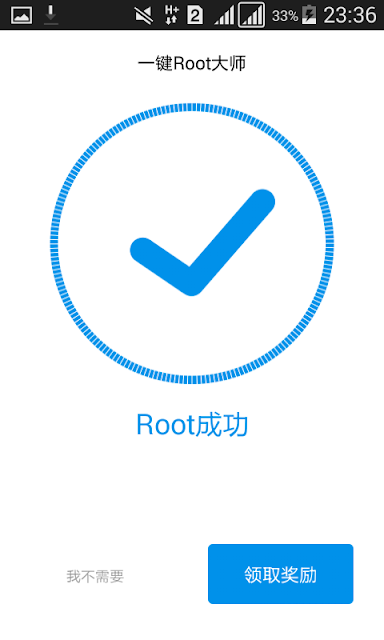
    root dashi root android success
    (Root success)
  4. If the root is failed, there will appear a red alien :v (if i not wrong), try to repeat the root process because I did success the root with this app at the second time. If you failed many times say like more than five times, then maybe this app is not suitable yet with your Smartphone type / it's Android version.
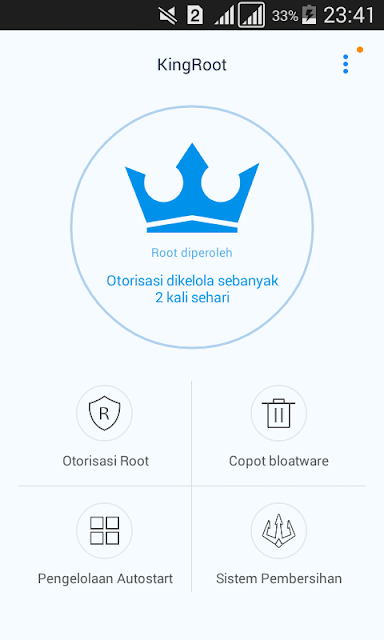
  5. If the rooting process without pc with this app is success, it will automatically appear app named "King Root" on our application drawer that is functioned as superuser management.
    king root superuser after root dashi success
    (King Root application as superuser management)

Root Dashi APK android application download link


-> ROOT DASHI v. 5.1.6.apk (+- 8.3 MB)


How to root your Android without PC / computer with 360 Super Root app

How to Install CWM custom recovery mode without PC / c

Root Android Kitkat 4.4.2 Without PC or Computer Samsung Galaxy V SM-G313HZ

Finally i found the way how to root my Samsung Galaxy V SM-G313HZ (android kitkat 4.4.2) without PC / computer and it's work! There is so many tutorial to root Android but a lot require PC / computer to do that, and also many guide to root android using application like framaroot, kingoroot, etc, but after i test it it's not working on my Samsung Galaxy V SM-G313HZ.

Steps to root android kitkat 4.4.2 using 360 root apk android application (tested on Samsung Galaxy V SM-G313HZ)

  1. First, we need to download the 360 Super Root v 6.6.2.apk application, then install it.
  2. Turn on your internet connection, if your on mobile data make sure the data signal is at least at 3G or H+, prepare your battery power at higher than 50% (to keep unwanted things not happen), and internet data quota at least 10 MB if you on mobile data (because I don't know how much exactly the data required).
  3. Open 360 Super Root app, after we open it for the first time there will be an introduction menu (lets pass this since it's written in Chinese), keep swipe to the left until it go trough the main interface.
  4. Then we will see big round white button with chinese fonts, under it there will be "root" text, tap it to start the rooting process.

    (Tap the big round white button to start rooting your device)

    (Root process is running, wait till finish)

    Just wait a while and the big white round button will change like following image (numbers appear), maybe the big white round button now change it's function to a RAM cleaner. Congratulations! Now your android smartphone device is in rooted state.

    (Numbers appear, rooting process success)


If after no. 4 process the round is not change and just appear a pop-up like following image, try to restart / reboot smartphone, then open again the 360 Root app and see if the white round button change and appear numbers like image above, if not then the rooting process is failed and try to restart the steps above. Note: If you fail many times like more than 5 times, then maybe this app is not suitable yet for your Smartphone or it's Android version.

(Tap the green button, then restart)

We also can download and install Root Checker.apk Android Application to see more detailed on our android device root status (just remember to give the app superuser access rights, like following image).

When an application ask a system access permission, then there will be a pop up from 360 Super Root app just like following screenshot, tap the left white button to give it a superuser access rights.

(Tap the left white button to give the app a superuser access rights)

One more thing, if the rooting process success, 360 root app will automatically add 2 shortcut icon to our launcher homepage (if there is still empty space in our launcher homepage), the one is just like same to open the 360 Super Root app and the other one is a shorcut to superuser management with lock icon.

Note: The unlock "Developer Option" in your android smartphone maybe can be one of caused the fail rooting process. So if possible try to do a factory reset / wipe data first if you have unlock the Developer Option.

360 Super Root v 6.6.2.apk

Root Checker v 5.6.1.apk

PHH Superuser - Alternative Open Source Rooting Method for Android

"PHH Superuser is the new player on the Android superuser / supersu app management. I am pretty confident this is a trusted supersu management because the project is open sourced. PHH Supersu is a modification / tweak from the open source Superuser project by Koushik Dutta (Clockworkmod) . PHH Superuser is created in hope to works on more device than Superuser can reach."

Root is mode on Android device where the system is unlocked and opened for modification. It can unlock the full potentiall of an Android device. On modern Android device like today, we must have some method to controll the powerfull potentiall of root so application that demand for root access is not harm the device system.

By using a superuser application, all apps that demand for root access must have been granted the permission first from the superuser app. And that method is by using superuser managements application to controll the root, and one of the newest is PHH Superuser. "PHH" is taken from its founder name, Pierre-Hugues Husson.

I think PHH Superuser is rooting Android device using "systemless" method. I can figure it because every I boot my Android device from TWRP recovery, it always says "device not rooted". In fact, the root is exist and all of my root application is working well.

If you love the Clockworkmod app and have tried the Clockworkmod Superuser rooting method did not work on your Android device, then you must try this method. Because the same thing is happened to my Samsung Galaxy V SM-G313HZ stock ROM.

phh superuser main interface

The transfer of Chainfire Supersu ownership to Coding Code make me seek alternative of superuser app


At older post I have share how to root Android using Chainfire SuperSu. That method is the most favorite of Android users, and because it have good root command compatibility make it never fail on giving permission and access to all root application on every Android device.

But since the recent news, Chainfire decide to transfer the ownership of SuperSu to relatively unknown and "shady" corporation who called themself Coding Code Mobile Technology (CCMT). Then I start to questioning the security and integrity of SuperSu, especially to the new owner CCMT.

News spreading, the rumors of folks at Android community is also flying. Who is CCMT? Is they trusted? But all the rumors questioning their integrity just gotten bigger and bigger as why they even do not came out and "show their face" to the Android community to make some clarification and declare their integrity holding such a powerfull root management application called SuperSu.

But CCMT is still just a shady corporation to me now. And I am very care to my security and privacy. That is why also the folks at XDA is start seeking alternative superuser and rooting method, especially the one who declare that he is an open source superuser app. Now, PHH Superuser is my number 1 choice on root management app on my Android phone.

How to root Android device using PHH Superuser


Requirements:

  1. First thing first, if you are trying to replace your old superuser app with this PHH Superuser, you must unroot your device first (the option is usually exist in the superuser app option), so there is no code conflict each other. Or if you are rooting your Android device using systemless root by Chainfire SuperSu before, you must restore your Android device boot img to the original just like before installing it.

    If this is the first time you rooting your Android device, then you can just simply ignore this first step.
  2. Installing zip flashable. Now we will root the device by flashing the Superuser zip file. Just straight boot your Android device into recovery mode, and install the Superuser zip file. After it is done, reboot device.
  3. Now the Android device is rooted, we need to install the PHH Superuser.apk application. You also can find it on Play Store.
  4. Done. Now the PHH Superuser is ready to act as root management app.

PHH Superuser download link


-> PHH Superuser flashable.zip (3.7 MB)

-> PHH Superuser.apk (1 MB)


Read more on the official thread of PHH Superuser on XDA Forum.

How to Enable Root or Superuser Access on Android Devices Running CyanogenMod ROM

Root is the first step when an Android user decide to journey in the Android hacking and tweaking world. By rooting an Android device, we can open the whole system and possibilities become unlimited. One of the most reason why user want to root their Android device is to installing a custom ROM. Now, for you who are using CyanogenMod ROM on your Android device and want a root mode / access, here is the easy steps to unlock the root mode on CyanogenMod ROMs.

manage root access cyanogenmod 13 rom

How to unlock root mode on Android device running CyanogenMod ROMs


  1. To unlock root mode on Android device which running CyanogenMod ROM, we must unlock the "Developer option". Go to "Settings" menu
  2. Scroll down and select "About phone"
  3. Look for "Build number", then tap rapidly on it for about 7 - 10 times. If you're done it right, there should be appear message "you have enabled developer option".

    tap rapidly build number unlock root android cyanogenmod rom
  4. Now back to "Settings" menu, you will see "Developer option" option, choose it.

    select developer option unlock root android cyanogenmod rom
  5. Scroll down slowly to find "Root Access", tap it. Then choose / select "Apps and ADB".

    select root access unlock root android cyanogenmod rom

    choose apps and adb unlock root android cyanogenmod rom
  6. Done! From now on if you run an application that asking for superuser permission, it will appear menu where you can grant or deny it's superuser permission request.

Install Supersu [Chainfire] via CWM Recovery (Update Binary + Root) Android

Allright, before i have show you how to root, and install CWM recovery for our Android smartphone without PC. But i suggest you to replace the old supersu management app with more reliable and the mastermind behind supersu itself, it is with Supersu by Chainfire. I suggest you to replace your Android smartphone supersu management with Supersu by Chainfire because it is more reliable, more RAM will be saved, and it is had more language support (not like 360 root and Root Dashi / King root that had Chinese basic).

Besides, this tutorial is also to root your android smartphone for you who have installed CWM custom recovery via PC / Computer.

What we need :

* Already installed CWM custom recovery. If you have not, then you can read How to Install CWM recovery without PC / Computer.

* A zip file of CWM-Supersu v 1.9.4.zip


Steps install Supersu [Chainfire] via CWM


1. For you who had installed another supersu app like 360 Super Root, Root Dashi / King Root, and etc, you must delete the apps first.

2. Download file CWM-Supersu v 1.9.4.zip, place it in external sdcard.

3. Go to recovery mode. Turn off your android smartphone, then simultaneously press and hold the volume up+power+home button for about 5 second.

4. Now you are in recovery mode, choose "Install zip" --> "install zip from sdcard" --> find where you save the CWM-supersu zip file and choose it --> "...yes..." --> Go back and reboot your Android smartphone.

After the installation success, we can update the supersu and the binary by downloading Supersu [Chainfire] at the app market. When we open the updated Chainfire Supersu for the first time as it ask to update the binary, we can choose with "..CWM/TWRP..." (but via "Normal" too sometimes work for me). Then if we update the root binary of our Android smartphone, it will be more suitable for every new update of root-needed applications.

-> CWM-SUPERSU V 1.9.4.ZIP

-> How to Install CWM custom recovery without PC / Computer