Showing posts sorted by date for query Cyanogenmod 13. Sort by relevance Show all posts

7 Best Free CyanogenMod 13 (CM13) ROM Themes for Your Android Device

Now i will share again about the best free theme pack you can get on Android market (on my opinion) for your Android device running CyanogenMod ROM you. But now, it is CyanogenMod 13 / CM13 theme. Also to all Samsung Galaxy V Android smartphone user, hold tight your panties and stay up to date because CyanogenMod 14.1 / CM14 (Android 7 Nougat) is on developing progress by the developer at XDA now :D .

Here it is in randomly order, the 7 Best Free CyanogenMod 13 / CM13 Theme Pack for your Android device, version Indo PhoneBoy.

  1. HoloCon by "Mayur Agarkar"


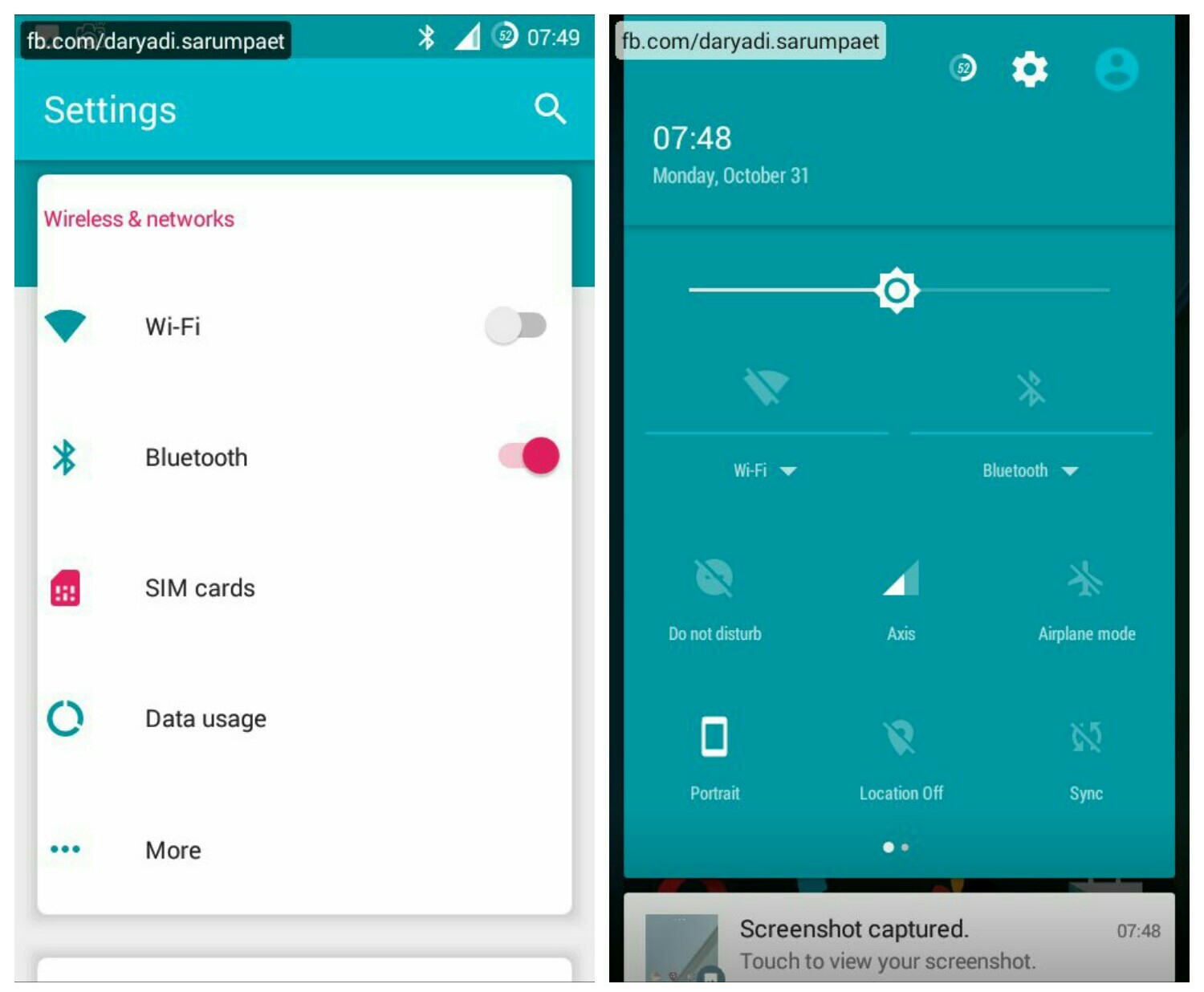
    First there is a nice theme pack for your Android device running CM13 ROM called HoloCon. The setting menu style is designed trully different from another CM13 pack. It using some nice pastel color with Android Nougat sweetness. This theme pack is also compatible with CyanogenMod 12.x / CM12 ROM.

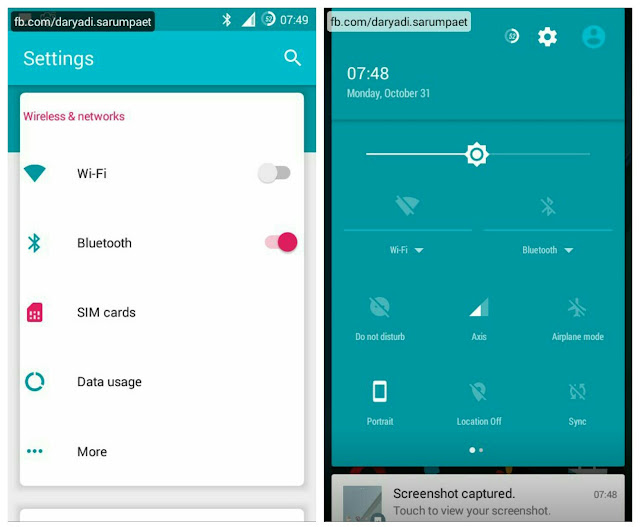
    holocon cyanogenmod 13 cm13 theme homescreen

    holocon cyanogenmod 13 cm13 theme user interface

    HoloCon theme for CM13 customize included:

    - Status bar
    - Font
    - Icons
    - Wallpaper / Lockscreen wallpaper
    - Controls
    - Sounds
    - Boot animation

    -> Download HoloCon CyanogenMod 13 theme.apk (32.7 MB)
  2. My Style by "RTosta"


    My Style is another cool CyanogenMod 13 theme worth to try on your Android device. It make combination of dark, light, and orange accent color and it look clean. What I most like from this theme pack is the status bar icons, it unique compared to others. Especially the battery icon, it's very cool. This theme is also compatible with CyanogenMod 12 / CM12 ROM.

    my style cyanogenmod 13 cm13 homescreen

    my style cyanogenmod 13 cm13 theme user interface

    My Style theme for CM13 customize included:

    - Status bar
    - Font
    - Icons
    - Wallpaper
    - Controls
    - Boot animation

    -> Download My Style CyanogenMod 13 theme.apk (11.4 MB)
  3. GalaxyUI by "ELS Design"


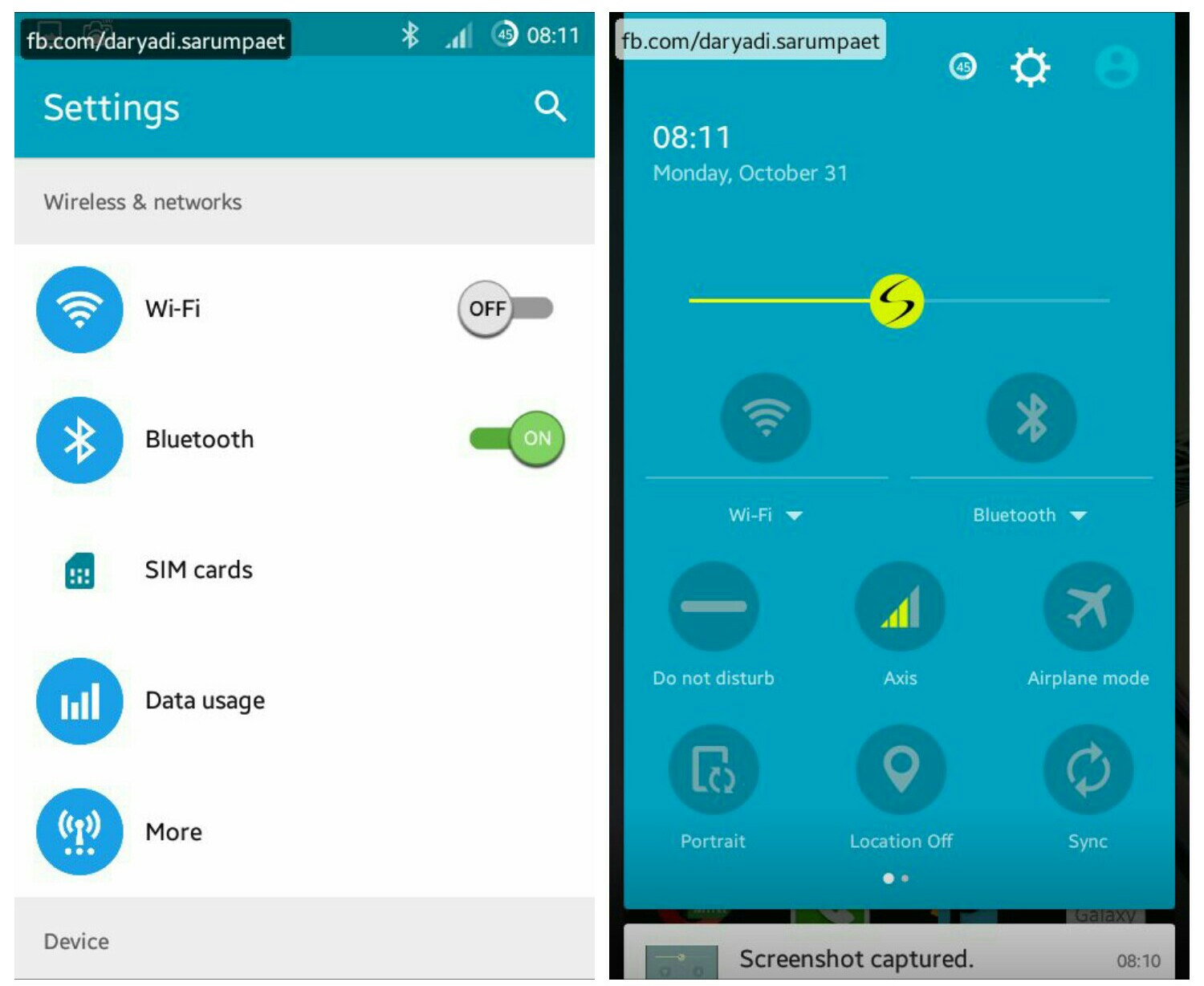
    Now after I kill the Touchwiz from my Samsung Galaxy V Android smartphone why it just make me miss it. And this theme pack can help to ease your missing from the 'Sammy' original User Interface with it's Galaxy styles and icons. It combines from many Galaxy phones style into a one good theme pack for CyanogenMod 13 / CM13 ROM. This theme is also compatible with CM12 ROM.

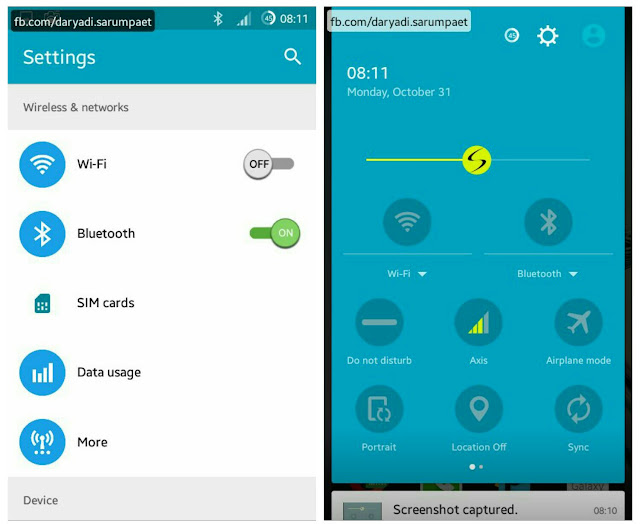
    galaxyui cyanogenmod 13 cm13 theme homescreen

    galaxyui cyanogenmod 13 cm13 theme user interface

    GalaxyUI theme for CM13 customize included:

    - Status bar
    - Font
    - Icons
    - Wallpaper / Lockscreen wallpaper
    - Controls
    - Sounds
    - Boot animation

    -> Download GalaxyUI CyanogenMod 13 theme.apk (20.7 MB)
  4. Back to Earth by "Craig Dowdall"


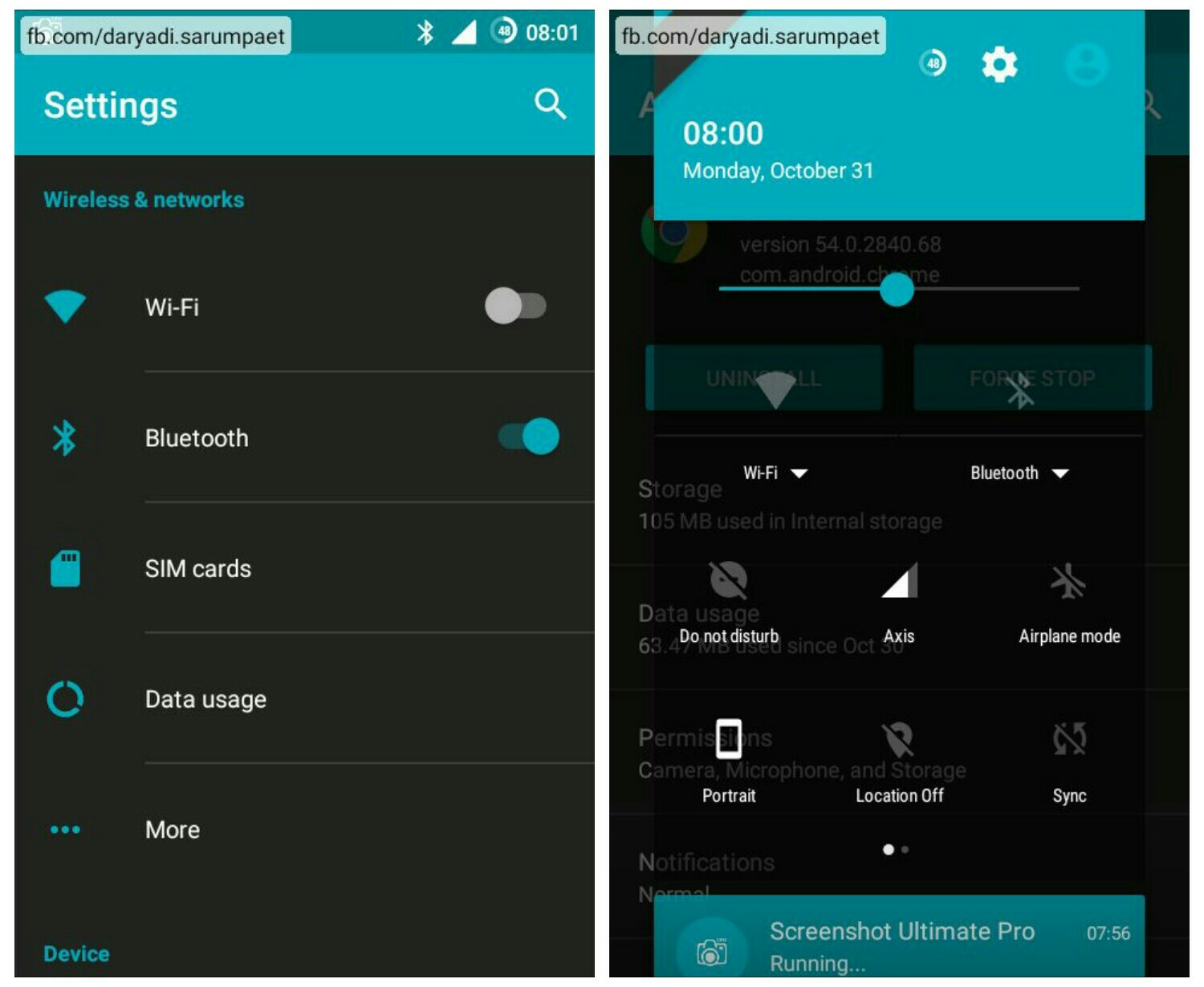
    Now there is a beautifull theme pack called Back to Earth. This theme pack will greenifying your Android smartphone with combination of dark color and cool green - blue spectrum of colors. This theme is also compatible with CyanogenMod 12.x / CM12 ROM.

    back to earth cyanogenmod 13 cm13 theme homescreen

    back to earth cyanogenmod 13 cm13 theme user interface

    Back to Earth theme for CM13 customize included:

    - Status bar
    - Font
    - Wallpaper / Lockscreen wallpaper
    - Controls
    - Boot animation

    -> Download Back to Earth CyanogenMod 13 theme.apk (9.9 MB)
  5. Riggedy Lite by "MODERNDROID"


    Another dark color main theme for CyanogenMod 13 / CM13, called Riggedy Lite. This theme is had it style with simple style and combination of black and navy blue. I think this theme is good, especially for me whose a blue color fans. This theme is also compatible with CM12 ROM.

    riggedy lite cyanogenmod 13 cm13 theme homescreen

    riggedy lite cyanogenmod 13 cm13 theme user interface

    Riggedy Lite theme for CM13 customize included:

    - Status bar
    - Wallpaper / Lockscreen wallpaper
    - Controls
    - Sounds
    - Boot animation

    -> Download Riggedy Lite CyanogenMod 13 theme.apk (6.4 MB)
  6. Xos by "Hassan Al-Hallaq"


    Now there is another nice theme called Xos. Xos is an UI name of Infinix mobile. And so like that, this theme will turn your Android device into the new Infinix Mobile User Interface, believe me :v .

    xos cyanogenmod 13 cm13 theme homescreen

    xos cyanogenmod 13 cm13 theme user interface

    Xos theme for CyanogenMod 13 customize included:

    - Status bar
    - Font
    - Icons
    - Wallpaper / Lockscreen wallpaper
    - Controls
    - Sounds
    - Boot animation

    -> Download Xos CyanogenMod 13 theme.apk (34.2 MB)
  7. Transparent Black by "Gianluca Spadazzi"


    Last but not least, there is the most antimainstream theme pack for your Android device called "Transparent Black". Why I say it's unique, because the background and all of the UI is just transparent like a glass. So everytime we change the wallpapers, the UI background is change also following the wallpaper. This theme is also compatible with CyanogenMod 12 / CM12 ROM.

    transparent black cyanogenmod 13 cm13 theme homescreen

    transparent black cyanogenmod 13 cm13 theme user interface

    Transparent Black theme for CyanogenMod 13 customize included:

    - Status bar
    - Font
    - Icons
    - Wallpaper / Lockscreen wallpaper
    - Controls
    - Sounds

    -> Download Transparent Black CyanogenMod 13 theme.apk (14.7 MB)

* Screenshot and display may differ due to different device model, screen resolution, and screen DPI density setting.

Install its like normal apk. To change your Android device theme running CyanogenMod 13 / CM13 ROM, go to "Settings" -> "Theme", choose your installed theme and apply it as you wish. It is also recommended to restart / reboot your Android device after change the theme to optimize the changes.

And also because CyanogenMod 13 is still a hot ROM, maybe some theme is still have some minor bugs as they are just released / created recently, so an update to the themes is expected in the future.

All the theme is available for free on the Play Store, rate it and give it nice comment if you think it is good.

How to Hide Image / Picture Files from Gallery Scanning on Your Android Device

Gallery is a must have application on every Android device / other mobile device. It should be a place where your beautifull and memorable picture of your's is gathered with clean and neat. And of course we don't want annoying and "unwanted" pictures to be appear on the Gallery app of our android / mobile device, but sometimes, it will :D .

Example when we installing an application / game, the app then create and distribute it's resources in our Android phone. We don't know where the app / game will distribute it, and if it distribute it image file resources on your internal memory device, then it just will spamming your Gallery with and will make your Gallery app totally mess.

Other reason your Gallery app on your Android device is become a mess with unwanted images is when you put or downloaded images pictures. The image file you download or put somewhere on your device storage will appear on your Gallery. Example if you hobbies to collecting memes by downloading it on social media, the memes will appear on the Gallery and gathered alongside with your picture with your family :D .

gallery app cyanogenmod 13 rom android

Now if you want to hide some images so it not messying your Gallery app, maybe you can try this tutorial ...

Steps how to hide unwanted images which appears on your gallery device app


  1. Open your best file manager app.
  2. Then locate the folder location where the unwanted images you want to hide from gallery scanning. You must know where is the image is saved / gathered, and you can see the images folder name from the "album" name in the gallery as a hint.
  3. Then at that folder / directory, make a file named ".nomedia". Note that some file manager app like stock file manager in samsung phone maybe can not make a file with "." symbol as prefix.

    make a .nomedia file android file manager

    5 Best File Manager Application for Your Android Device
  4. Done. Restart or reboot your Android / device.

How to Enable Root or Superuser Access on Android Devices Running CyanogenMod ROM

Root is the first step when an Android user decide to journey in the Android hacking and tweaking world. By rooting an Android device, we can open the whole system and possibilities become unlimited. One of the most reason why user want to root their Android device is to installing a custom ROM. Now, for you who are using CyanogenMod ROM on your Android device and want a root mode / access, here is the easy steps to unlock the root mode on CyanogenMod ROMs.

manage root access cyanogenmod 13 rom

How to unlock root mode on Android device running CyanogenMod ROMs


  1. To unlock root mode on Android device which running CyanogenMod ROM, we must unlock the "Developer option". Go to "Settings" menu
  2. Scroll down and select "About phone"
  3. Look for "Build number", then tap rapidly on it for about 7 - 10 times. If you're done it right, there should be appear message "you have enabled developer option".

    tap rapidly build number unlock root android cyanogenmod rom
  4. Now back to "Settings" menu, you will see "Developer option" option, choose it.

    select developer option unlock root android cyanogenmod rom
  5. Scroll down slowly to find "Root Access", tap it. Then choose / select "Apps and ADB".

    select root access unlock root android cyanogenmod rom

    choose apps and adb unlock root android cyanogenmod rom
  6. Done! From now on if you run an application that asking for superuser permission, it will appear menu where you can grant or deny it's superuser permission request.

Defiant07 Swap Init.d Script - Improve RAM Performance on Your Android Device

Now i will share a tutorial to imrove your Android device performance by tweaking the memory (RAM) using swap, and we will use init.d script called (and you may notice the creator by the script name) "Defiant07 swap script".

Personally i use swap RAM and disable the zram to increase performance on my mid-entry smartphone Samsung Galaxy V. It is proven (at last to me) can reduce lag and imrove multitasking ability. Before, i use RAM Manager Pro to did it. But recently since i found Defiant07 Swap script, later i switch using it, as it can send the swap RAM command directly to system without any additional app running so it won't use RAM and CPU for it. I use it on my Android smartphone running CyanogenMod 13 (6.0 Marshmallow) and the results is satisfied to me.

There are 2 methods to do swap RAM on our Android device using Defiant07 script. Both of them will require us running the script command to set and create an init.d scripts. One option via script manager app, and the other one is via terminal emulator. Choose the one suits you.

Requirements:


defiant07 swap script command terminal emulator

screenshot ram and swap diskinfo app

Installation Defiant07 swap script


Via Terminal Emulator (Flashable)


Tools:

Steps:
  1. Flash the Defiant07 swap it on zip file through recovery, reboot your Android device.
  2. Open Terminal Emulator app, type: su, enter, then type: swapit, enter.
  3. Follow the instruction to create setup for your swap and RAM setting preferences.

Via Script Manager (Non flashable)


Tools:

Steps:
  1. Download and extract the Defiant07 swap for Script Manager method zip file, inside it you will find the script file which you must run using Script Manager application.
  2. Open the Script Manager app, locate the script you just extracted before, and be sure to run it on root mode.
  3. Follow the instruction to create setup for your swap and RAM setting preferences.

Optional steps, disable the zram


Download and place the init.d script disable zram on /system/etc/init.d/. This is just based on my experience that if the zram is not disabled, the swap RAM is likely untouched and useless. Also by disabling the zram, it will reduce lag on your Android device as zram working by compressing block of ram, it will consume cpu resource.

Now after all is done, you can reboot your Android device.


Check out the original thread by Defiant07 at XDA Forum

Fix External SD Card on Android 6.0 Marshmallow to Become Full Writable Without Format It as Internal

Android 6.0 Marshmallow is already released and now even already released Android N (Nougat). But there is one major change in the storage access starting from Android 6.0.

The external storage card (SD Card) is not fully writable just like the previous Android version and it also loss of ability to move application and game to the external SD Card but with one condition, we must format the external SD Card and then it will become the part of the device internal storage.

Formatting external SD Card as internal also means that the formatted external SD Card will only work and usable ONLY on that device.

Oh and one more thing, the external SD Card naming is also changes different from previous Android version from /storage/extSdCard/ to /storage/XXXX-XXXX/, where XXXX-XXXX is some combination of numbers and letters.

format as internal external sdcard on android marshmallow

Actually the full write access on external SD Card on Android 6.0 and up is still exist, only to application which got permission to do it. In order to get permission to write on external SD Card, the application must open the "Document storage" and then select the root of external SD Card.

But for the application that not implemented the method (or the app developer is just too lazy to implement it, hehe :D ), the write access to external SD Card is dead (except on directory /storage/XXXX-XXXX/Android/data/domain.application.package.name/.

But for you who don't wan't to format the external SD Card as internal on your Android device, but still want full write and read access, there is one solution using Xposed module called "XinternalSD".

XinternalSD has been tested on my Android smartphone running Android 6.0 Marshmallow, CyanogenMod 13 (CM13) ROM and it could solve the following issues on the following applications i have tested:
  • UC Browser, now i can set the download directory to /storage/XXXX-XXXX/ANYWHEREIWANT/.
  • Helium, now the delete and make backup to external SD Card (/storage/XXXX-XXXX/carbon/) is working properly.
  • Titanium Backup, now i can set the backup folder to /storage/XXXX-XXXX/ANYWHEREIWANT/.
  • And other applications...

Requirements:

xinternalsd main user interface

titanium backup save on external sdcard

Steps how to make external SD Card become full writable on Android 6.0 Marshmallow without need to format it, using XinternalSd


Note that this only make the external SD Card full writable so every application could write and read freely to external SD Card without need permission, and not retrieve the ability to move application or game to external SD Card.

  1. Download and install latest version of XinternalSD.
  2. Activate the XinternalSD module on Xposed.
  3. Open the XinternalSD app, make sure the option "Custom path to internal SD card" and "Full access to external SD card" is √ checked.
  4. Now reboot your Android device and test it yourself...